

Step 1
進入 BIOS Advanced Mode
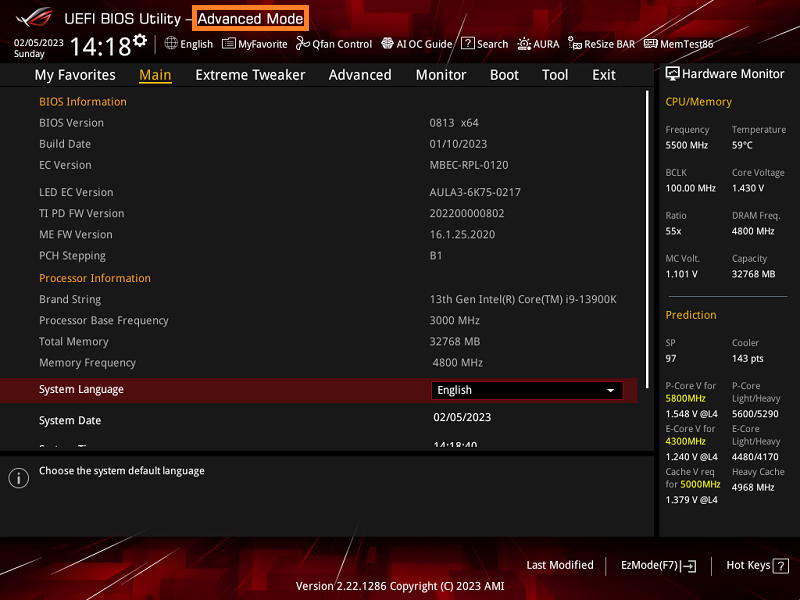
電腦開機後,立刻連續按鍵盤上的「Delete」鍵,進入 BIOS 的 Advanced Mode。
Step 2
點選 Boot 頁面
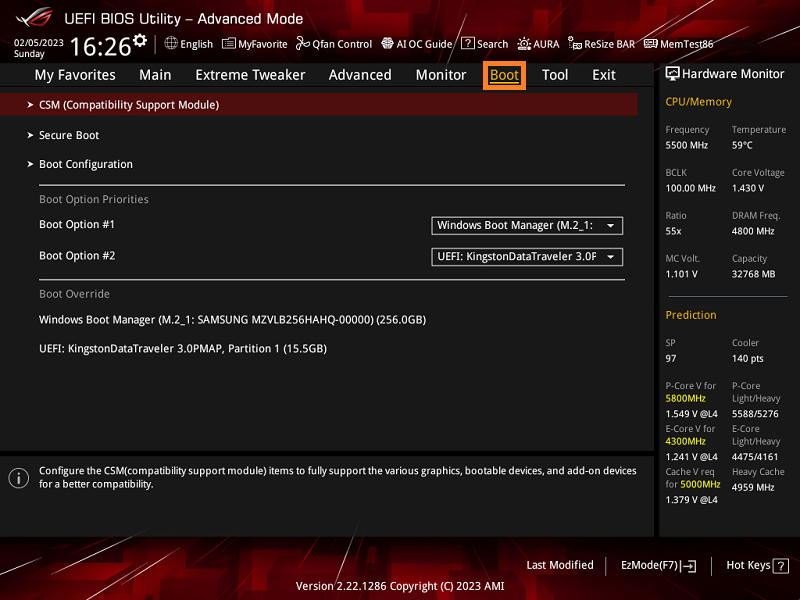
進入 BIOS Advanced Mode 後,點選上方的「Boot」頁面。
Step 3
進入 Secure Boot 選項
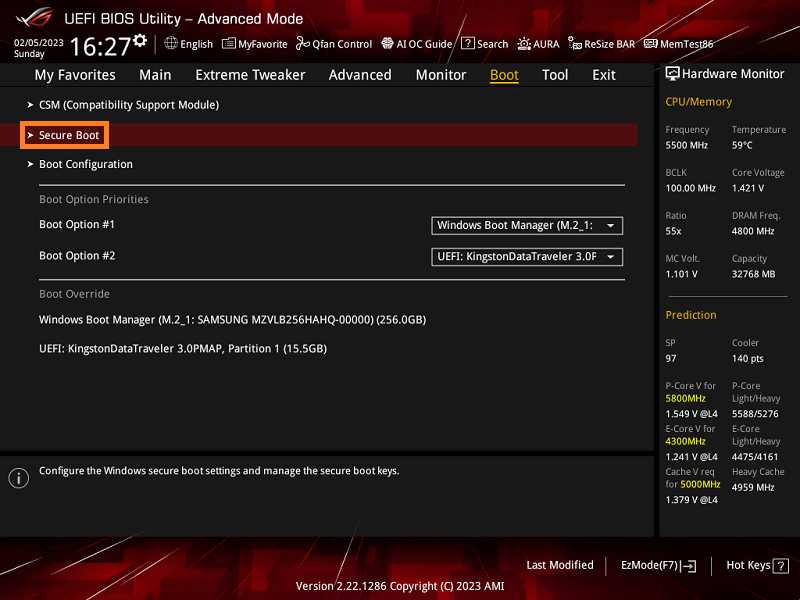
在 Boot 頁面中,點選「Secure Boot」選項。
Step 4
調整 OS Type
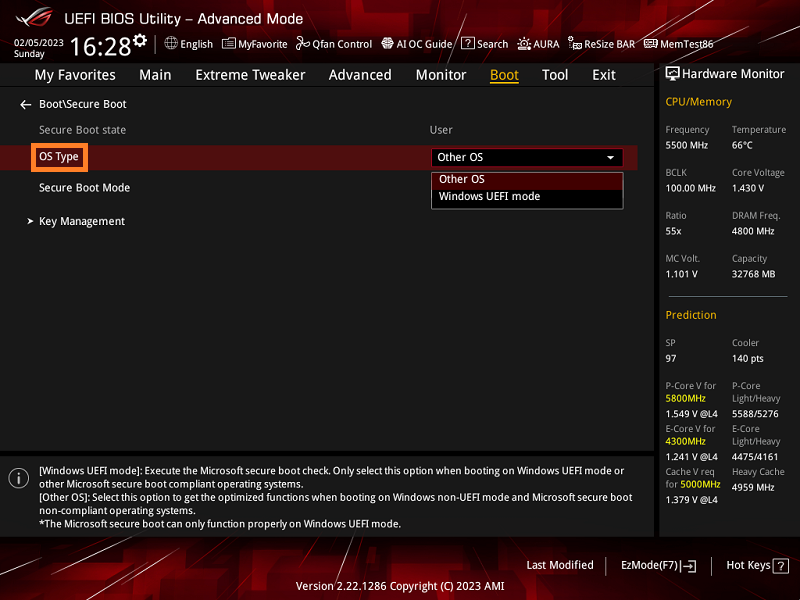
OS Type 預設值為「Other OS」。若要調整 Secure Boot 狀態,可依照下方對應方式設定。
Other OS:安全開機狀態關閉
Windows UEFI mode:安全開機狀態開啟
Windows UEFI mode:安全開機狀態開啟
Step 5
Secure Boot State 對應狀態
BIOS 中的 Secure Boot State 預設為灰色,無法手動修改,狀態會隨 Secure Boot Keys 是否存在而改變。
User:有 Secure Boot Keys
Setup:沒有 Secure Boot Keys
Setup:沒有 Secure Boot Keys
| BIOS 下 Secure Boot State | OS Type | Secure Boot Mode | Key Management | 系統下 Secure Boot State |
|---|---|---|---|---|
| User | Other OS | Customer | Default | 關閉 |
| User | Other OS | Standard | N/A | 關閉 |
| Setup | Other OS | Customer | Clear Secure Boot Keys | 關閉 |
| Setup | Windows UEFI mode | Customer | Clear Secure Boot Keys | 關閉 |
| User | Windows UEFI mode | Customer | Default | 開啟 |
| User | Windows UEFI mode | Standard | N/A | 開啟 |
Step 6
在 Windows 中查看 Secure Boot 狀態
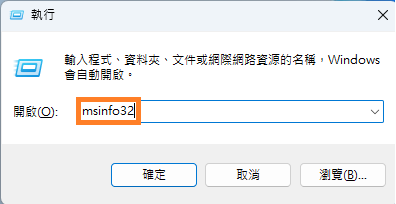
在 Windows 系統下,同時按下鍵盤「Win + R」,輸入「msinfo32」並開啟系統資訊。
Step 7
確認安全開機狀態
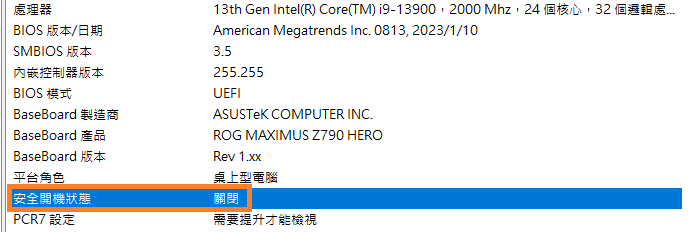
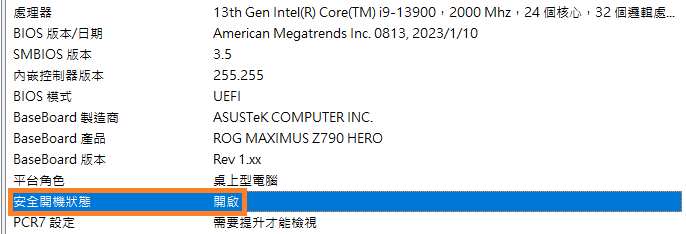
在系統資訊中找到「安全開機狀態」。若顯示關閉,表示 Secure Boot disabled;若顯示開啟,表示 Secure Boot Enabled。
資料來源
本教學依 ASUS 官方支援 FAQ「主機板|如何開啟或者關閉安全開機 Secure Boot」整理。

Related posts

artale外掛下載懶人包:安全來源推薦與防檢舉教學
在楓之谷懷舊服(MapleStory Private Server)盛行的今天,Artale 外掛因其高效率與穩定性,成為許多玩家提升練等與打寶效率的重要工具。然而,伴隨而來的是外掛檢舉風險、來源不明的病毒威脅,以及帳號封鎖的風險。本篇文章將為你整理一份完整的《arta...

Artale各腳本比較與介紹
🎮【BV 圖色腳本】
購買網址:🔗 點我前往
運行原理:透過電腦視覺技術(AI圖像識別),擷取畫面上的圖像像素進行判斷與點擊。
優點:💎 可自訂地圖:自行錄製地圖路線,客製化使用💎 安裝簡單:啟用後即可開始操作💎 適合入門者使用💎 無視遊戲更新
...